# Seteup IPTV On MAG BOX

​​

<figure><img src="https://982944355-files.gitbook.io/~/files/v0/b/gitbook-x-prod.appspot.com/o/spaces%2FzfxUc8hTtAFbiH60h9LQ%2Fuploads%2FHoJUkPQJeI1WbaS1hmM3%2FCat_thumb_MAG522_1.png?alt=media&#x26;token=2c61f65a-1dbb-4431-9771-59cb01e997f2" alt=""><figcaption></figcaption></figure>

This tutorial will guide you through a simple and effective steps of installation your Mag (250/254/256…).&#x20;

Step 1: When the box is being loaded the main portal screen appears. After that click on “settings”, and press the remote button “SETUP/SET”.

<figure><img src="https://iptvjoin.com/wp-content/uploads/2023/03/cvfgfgfgre.png" alt=""><figcaption></figcaption></figure>

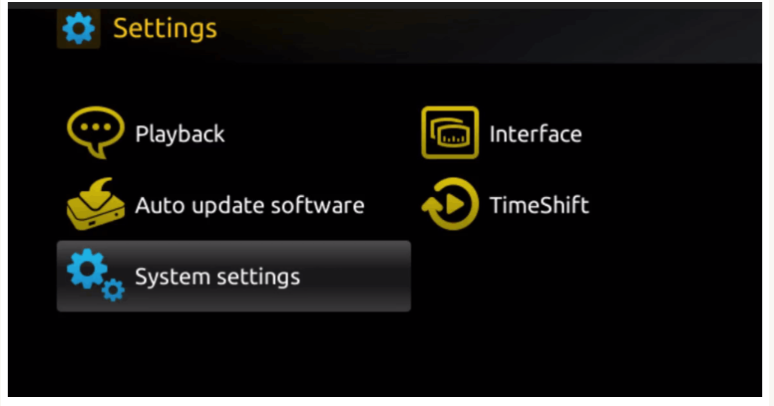
Step 2: Then press on “System settings” and click on “Servers”.

<figure><img src="https://iptvjoin.com/wp-content/uploads/2023/03/C10.png" alt=""><figcaption></figcaption></figure>

Step 3: Click on ‘Servers’

<figure><img src="https://iptvjoin.com/wp-content/uploads/2023/03/c20.png" alt=""><figcaption></figcaption></figure>

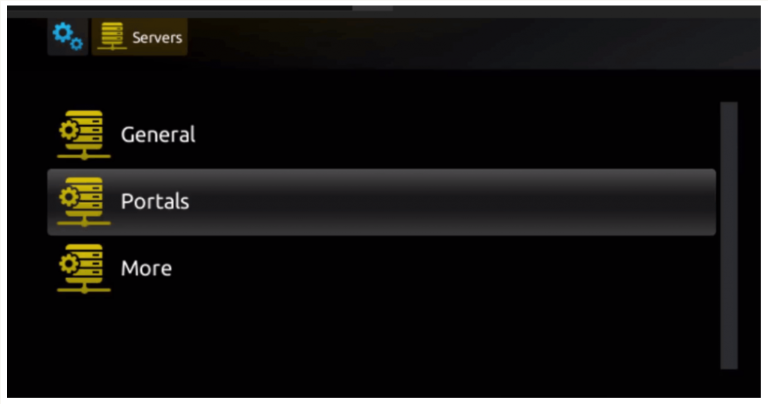
Step 4: Choose and Press option ‘Portals’

<figure><img src="https://iptvjoin.com/wp-content/uploads/2023/03/c30.png" alt=""><figcaption></figcaption></figure>

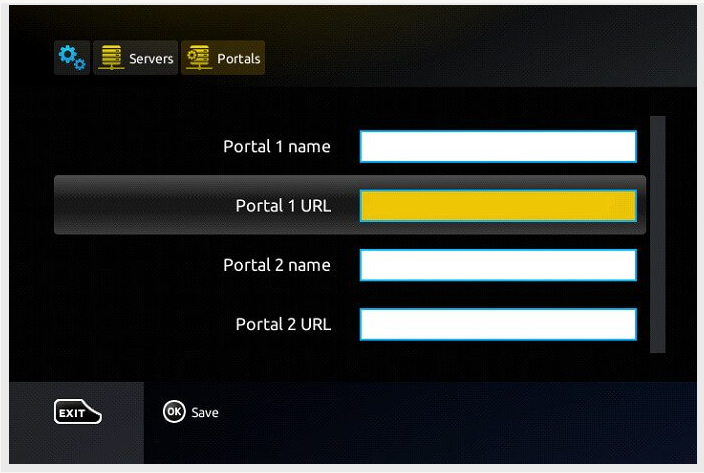
Step 5: In the ‘Portal 1 name’ line enter a portal name and in the ‘Portal 1 URL’ enter portal URL.

<figure><img src="https://iptvjoin.com/wp-content/uploads/2023/03/C40.png" alt=""><figcaption></figcaption></figure>

Therefore for the activation of our IPTV subscription on your MAG box, you must send us with your order the MAC address found on the label behind the box, the activation is done entirely remotely, just after activation, we will send you a URL link that you have to put on your PORTAL, as in the photo below:

Step 6 – Finally when you complete select and click ‘OK’ to save the changes.&#x20;

Step 7 – Click ‘EXIT’ on the remote control after the settings are being saved.&#x20;

Step 8 – Consequently you have to reboot the box. Choose the option ‘OK’ to make the changes applied.


---

# Agent Instructions: Querying This Documentation

If you need additional information that is not directly available in this page, you can query the documentation dynamically by asking a question.

Perform an HTTP GET request on the current page URL with the `ask` query parameter:

```
GET https://docs.moviespacetv.com/mag-box/seteup-iptv-on-mag-box.md?ask=<question>
```

The question should be specific, self-contained, and written in natural language.
The response will contain a direct answer to the question and relevant excerpts and sources from the documentation.

Use this mechanism when the answer is not explicitly present in the current page, you need clarification or additional context, or you want to retrieve related documentation sections.